Português
 English

Introduction
Welcome to the reference documentation of ASA Investments APIs.
Our Environments
| Environment | Endpoint |
|---|---|
|
Sandbox: An environment with mock data used to speed up the onboarding process and the development of new features using the API First approach. |
https://api-sandbox.asa.com.br |
|
Development: An environment used by the API development team for creation and bug fixes. |
https://api-dev.asa.com.br |
|
Staging: An environment used by the API consumer's development team, with a stable version and no access to the production environment. |
https://api-qa.asa.com.br |
|
Production: An environment used by the API consumer team, accessing the production environment. It should not be used for testing. |
https://api.asa.com.br |
Authentication
Authentication of the Marketplace APIs is done by providing a token in the request header. The following token is expected in each request:
Authorization: Basic [Base 64 Code].
Obtain App Credentials
Before making requests to obtain your access token, ensure you have your APP's id (client id) and password (client secret) to use them. If you haven't noted these down, you can retrieve them from this portal, on the page shown in the next image.
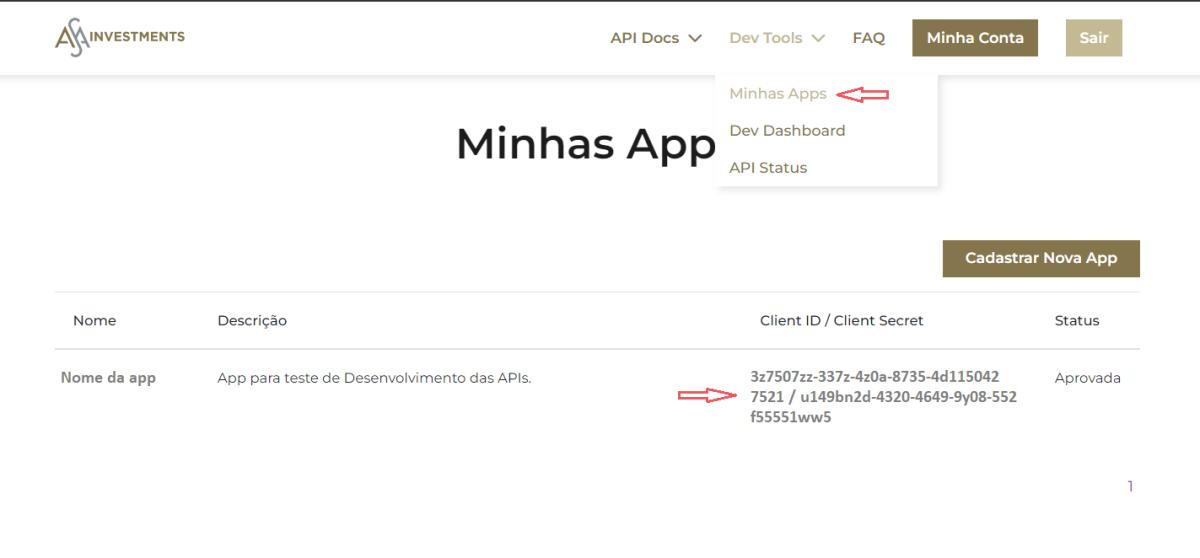
To create your first APP or a new one, follow the steps below.
Obtain a New APP
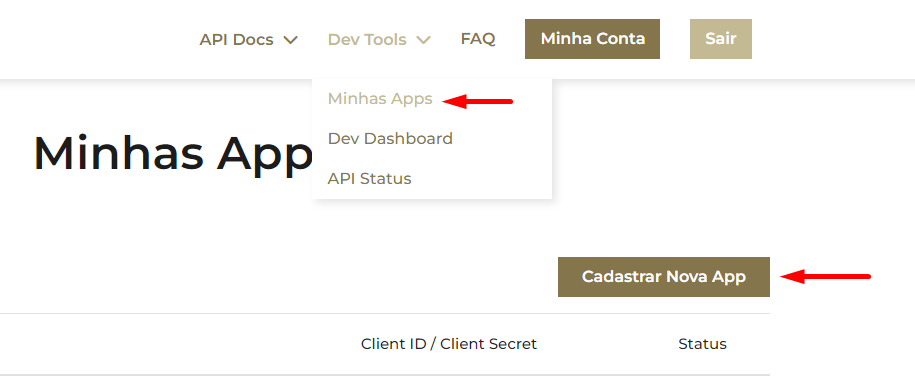
To obtain a new APP, follow these steps: Click the Register New App button.
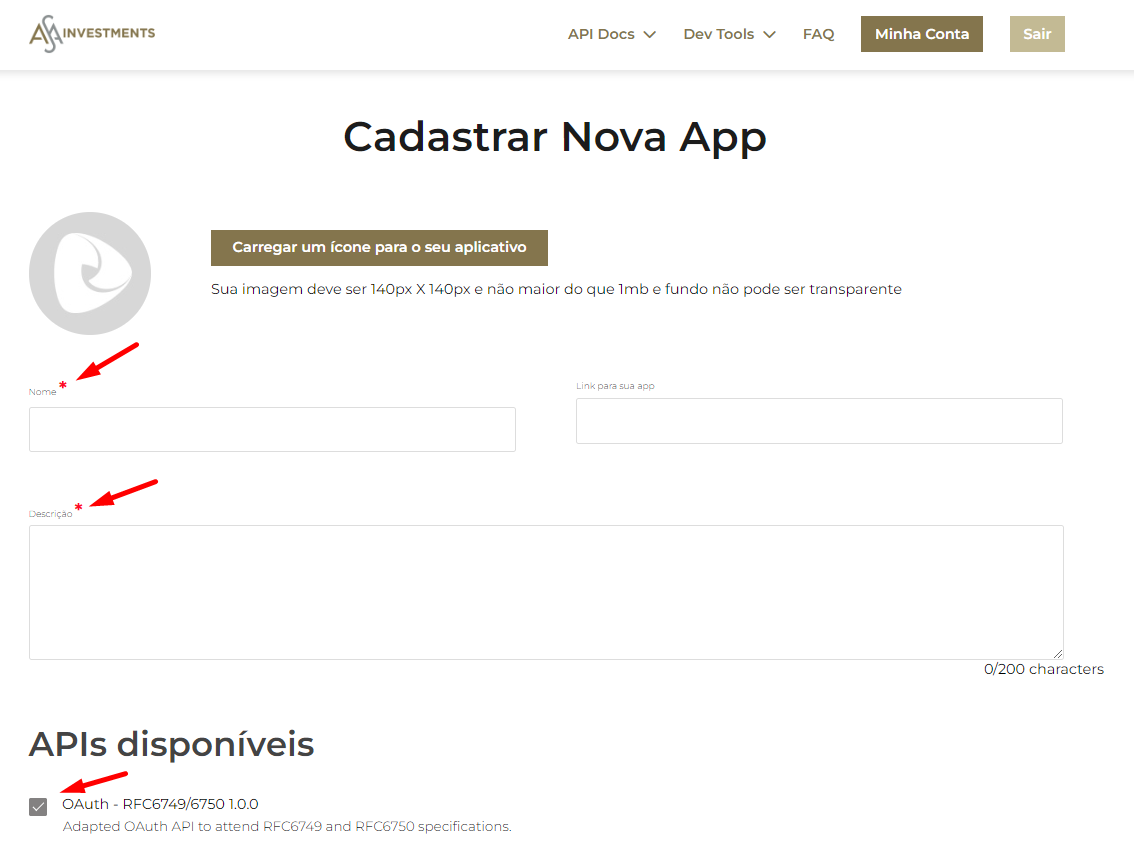
Fill in the APP details, select the APIs to be used, and click Register. Consider the list of APIs HERE
After creating the APP, send an email (to the ASA focal point) requesting access authorization to the staging environment.
* A App must be created for access to the testing environment and one for the production environment.
Authentication Flow
To illustrate the authentication flow, we will use the software Postman, widely used for consuming and testing APIs.
You can download the Authorization Collection HERE
Flow to Obtain an Access Token
Start by configuring the basic authentication and the request URL.
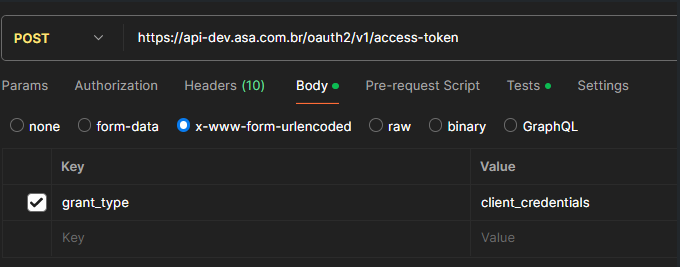
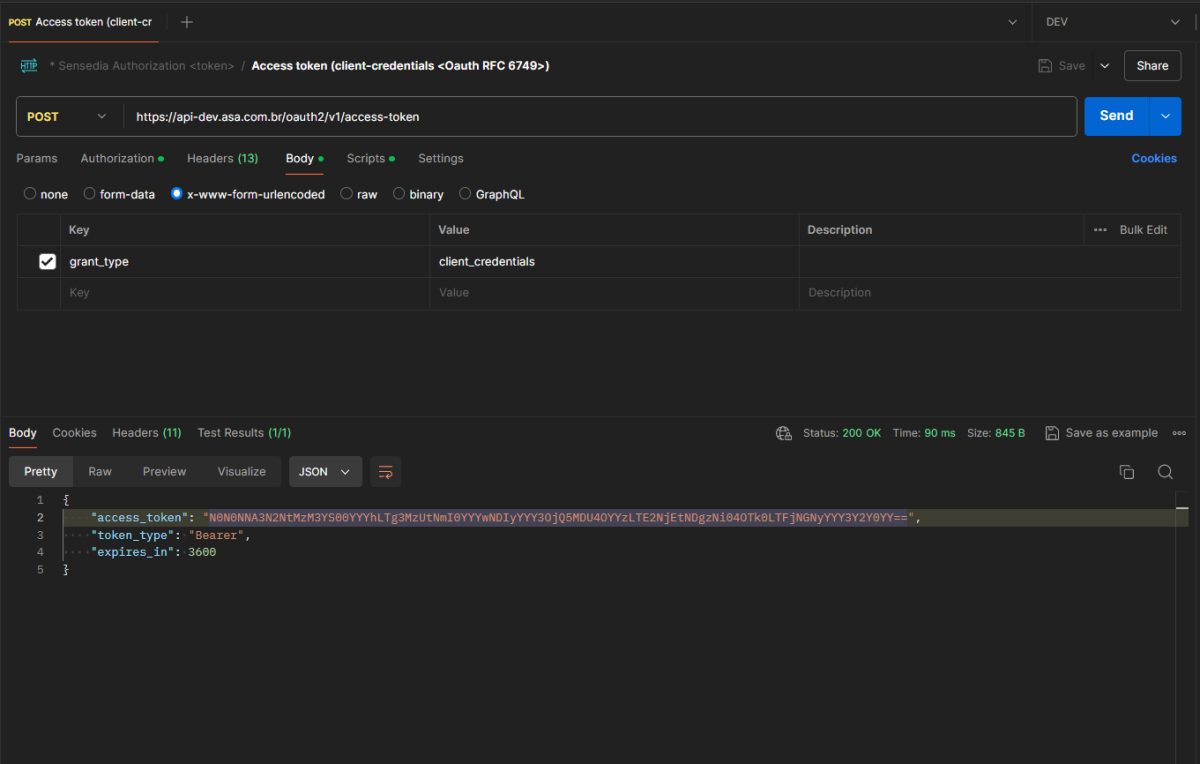
In Postman, set the HTTP method to POST and the URL to https://api-dev.asa.com.br/oauth2/v1/access-token. Then, go to the Authorization tab, select Type: Basic Auth and enter your client_id in the username field and your client_secret in the password field.
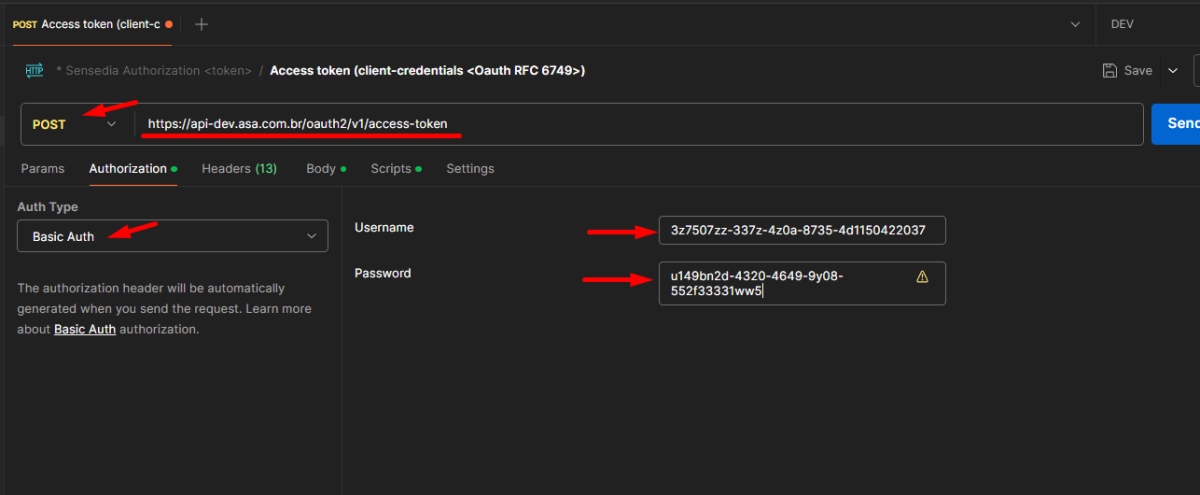
In the Body tab, select x-www-form-urlencoded and pass the key grant_type with value client_credentials.
After making the call, you will receive the following response:
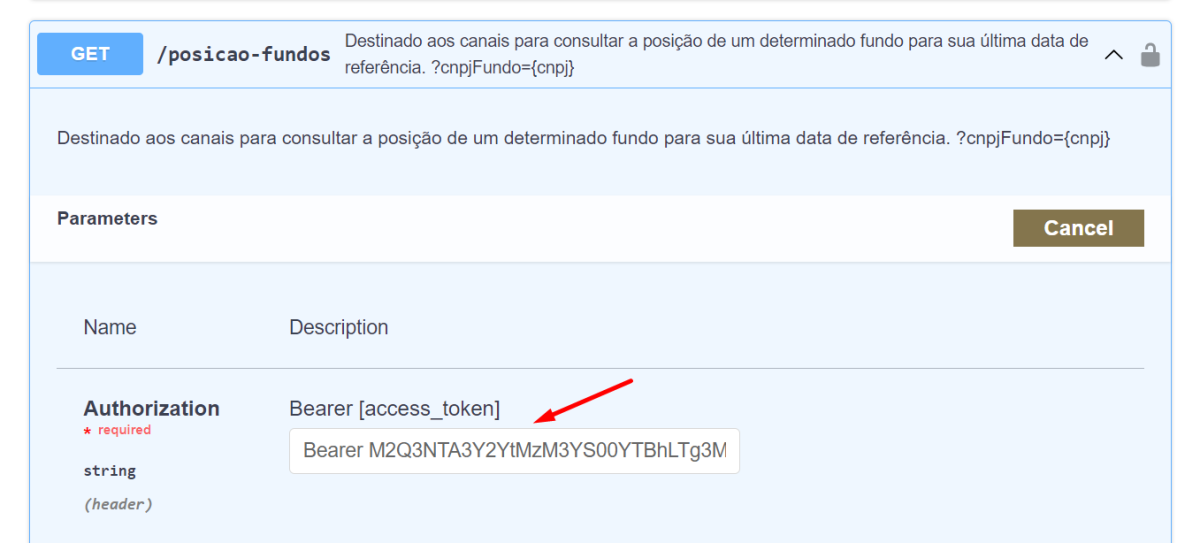
Calling the API via Swagger
When making an API call via Swagger, in the Authorization header, you should pass the Bearer + access token generated in the previous call.
Status Codes
| Code | Error | Description |
|---|---|---|
| 200 | OK | Success. |
| 400 | Bad Request | The request contains invalid parameter(s). |
| 401 | Unauthorized |
The access token was not provided or does not have access to the APIs. |
| 404 | Not Found | The resource specified in the request was not found. |
| 413 | Request is too Large |
The request exceeds the allowed limit for your access token profile. |
| 422 | Unprocessable Entity | The request contains business logic errors. |
| 429 | Too Many Requests | The consumer has exceeded the request limit per time. |
| 500 | Internal Server Error |
An unexpected error occurred; something is broken in the API. |